AriAccess is our new, free WordPress plugin for finding and fixing accessibility problems. This note explains what the AriAccess accessibility plugin does, how it differs from overlay widgets, how it maps to the Norwegian rules and how to install it. It ends with a 10-minute manual test you can do today, because some testing is always left for you.
What the AriAccess accessibility plugin is, and why it is not an overlay
AriAccess on WordPress.org is at version 1.1.0, and it is free. It is also new. At the time of writing, the plugin page shows fewer than 10 active installations. If you try it now, you are an early user, and we want to hear what works and what does not in the support forum.
The plugin gives you content and page checks, code fixes, a keyboard-friendly display panel for visitors and an accessibility statement generator, all mapped to WCAG and the Norwegian rules. It requires WordPress 6.5 or higher.
Because the plugin includes a visitor panel, the obvious question is whether it is an overlay. The plugin FAQ draws the line this way: overlays claim to repair a site automatically and often get in the way. The AriAccess panel only changes how the page looks for visitors who choose to use it. Real problems are fixed at the source, in your content and markup.
The plugin page also states that no plugin can, on its own, make a site meet accessibility requirements, and AriAccess does not claim to. We hold to that throughout this article.
Finding problems: content checks and page checks
AriAccess finds problems in two ways. Content checks look at what you write in WordPress. Page checks test the finished page as it appears in the browser, including your theme and other plugins.
Content checks in the editor
The content checker runs 26 checks. They include:
- Missing or poor alt text on images
- Vague link text in English and Nordic languages, such as “click here”, “les mer”, “läs mer” and “lue lisää”
- Skipped heading levels and empty headings
- Tables without headers
- Frames without titles
- Autoplaying media and missing captions
- Unlabeled form fields and buttons without a name
- Duplicate ids and positive tabindex values
Color contrast is checked too. The changelog calls this “palette-aware contrast”, meaning the check takes your theme’s color palette into account.
Page checks with axe-core
When you are logged in and viewing a page, click “Check accessibility” in the admin bar. This runs the axe-core testing engine on the live page in your own browser. According to the plugin page, axe-core loads only for logged-in editors who run a page check, so your visitors do not download it.
“Check key pages” runs the same test on your home page, your menu pages, your newest post and your accessibility statement, one after the other. It is a quick way to get an overview of a site you have just taken over.
The dashboard lists open problems and the pages to fix first. Start with the pages your visitors use most, such as the home page, contact page and checkout, rather than whichever page has the longest list.
Picking the right standard for your site
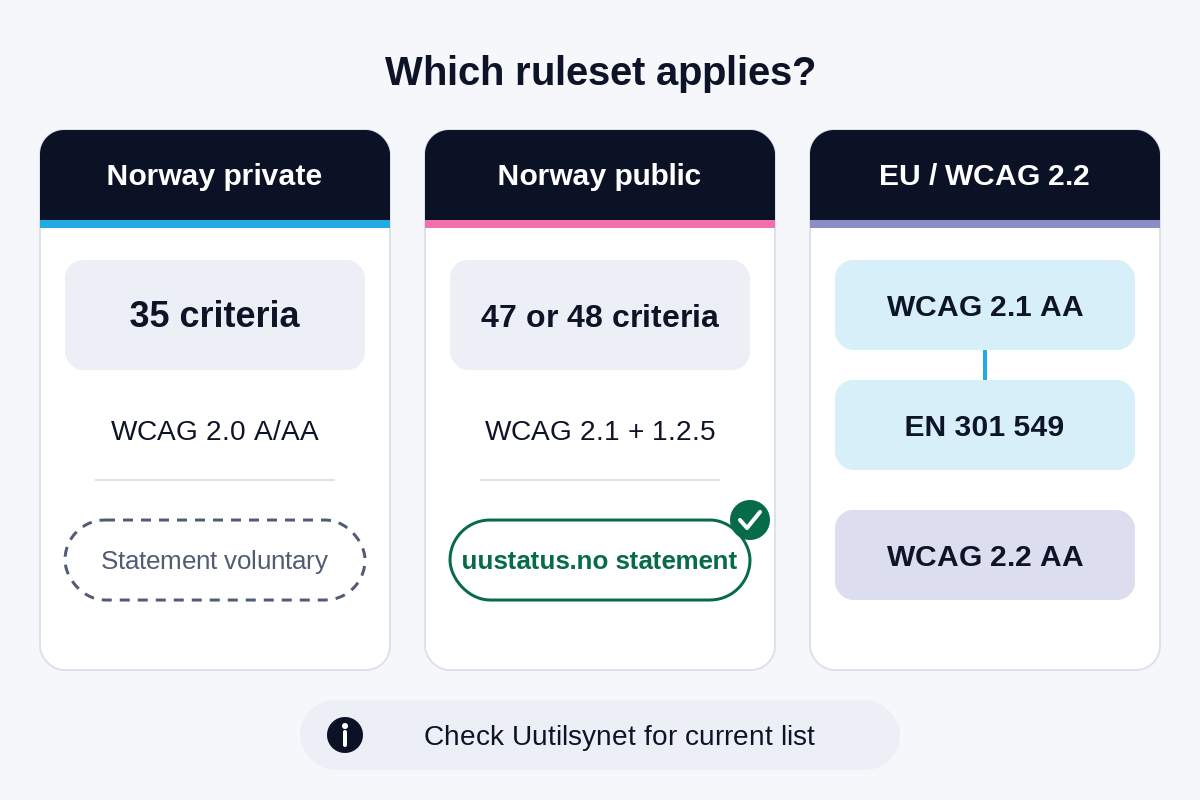
In Settings, you choose the standard to check against. Each issue is then marked as either required or good practice. The plugin page lists these options:
- Norway, private sector: 35 WCAG 2.0 criteria
- Norway, public sector: 47 WCAG 2.1 criteria, as worded on the plugin page (see the note in the next section)
- WCAG 2.1 AA / EN 301 549
- WCAG 2.2 AA
If you run a private business in Norway, start with “Norway, private sector”. If you work for a public body, choose “Norway, public sector”. If you want to aim above the Norwegian minimum, pick one of the WCAG options.
Which rules apply in Norway
The authority is Uutilsynet (Tilsynet for universell utforming av ikt). Its list of WCAG requirements states that the public sector must follow 48 requirements and the private sector 35, and that these are minimum requirements.
| Who | Requirements | Accessibility statement |
|---|---|---|
| Private businesses | 35 success criteria from WCAG 2.0, levels A and AA | Voluntary |
| Public bodies | 48 of the 78 success criteria in WCAG 2.1, per Uutilsynet (the plugin setting says 47) | Required |
Uutilsynet’s page on the EU Web Accessibility Directive (WAD) explains the split. The public sector follows the WCAG 2.1 requirements and must publish a statement. The private sector gets no new requirements, so the 35 minimum requirements still apply.
Note on 47 vs 48: According to this guide to the Norwegian requirements, the WCAG 2.1 additions took effect on 1 February 2023, and criterion 1.2.5 (audio description for prerecorded video) applies to video published on or after 1 February 2024. That explains the difference from the plugin’s wording. The guide is a secondary source, so treat Uutilsynet’s own list as the authority.
Public bodies create their statement through Digdir’s central solution, uustatus.no. In AriAccess, the uustatus.no field appears only when you choose a public body.
This article is general information, not legal advice. If you are unsure which rules apply to you, check with Uutilsynet or a lawyer.
Fixes you can switch on or off
AriAccess includes 13 fixes, and each one can be switched on or off separately. Here are some of them:
| Fix | What it does |
|---|---|
| Skip link | Adds a skip-to-content link, but only if your theme does not already have one |
| Focus outline | Makes the keyboard focus clearly visible |
| Pinch zoom | Lets visitors zoom on phones |
| New-tab links | Adds an “opens in a new tab” warning, or makes links open in the same tab |
| “Read more” links | Adds the post title for screen readers, so each link makes sense on its own |
| Unlabeled fields | Gives search and form fields an accessible name |
| Older images | Uses the alt text from the Media Library where older posts have none |
Turn fixes on one at a time. After each one, load a page and Tab through it with the keyboard. This matters most on custom or heavily modified themes, where a fix can clash with code the theme already has. If something breaks, switch that fix off again and note it.
The display panel for visitors
The visitor panel has 19 options and 5 profiles. They include:
- Text size and spacing
- The Atkinson Hyperlegible and OpenDyslexic fonts
- High contrast and grayscale
- Stopped animations
- A reading guide and a reading mask
- A big cursor and a strong focus outline
- Read-aloud on click
The panel is built for keyboard and screen reader users. The plugin page says the panel itself was tested with axe-core and had no violations in light and dark mode. It changes the page only for the visitor who uses it, much like browser zoom.
You decide whether visitors see it. Untick “Show the display panel button” to hide it, or place the button where you want with the [ariaccess_button] shortcode. The panel links to your accessibility statement and to a “Report a problem” email address.
AriAccess sets no cookies, collects no visitor data and makes no external requests. The fonts and axe-core are bundled with the plugin, so the panel gives you nothing extra to handle in your cookie banner. If you are sorting out consent as well, see our free cookie consent plugin.
Accessibility statement and alt text manager
Writing the statement
The statement generator asks you a few questions and creates a normal, editable WordPress page in Norwegian or English. According to the plugin page, the statement covers known problems, a contact address, your reply time and how to complain to Uutilsynet.
“Add the problems AriAccess found” fills in the Known problems section from your check results. If you choose “Fully” as your conformance status while must-fix problems are still open, the plugin warns you. Edit the result before you publish it so it describes your site honestly.
For private businesses, a statement is voluntary. Uutilsynet says in its FAQ on accessibility statements that it is positive for users when private businesses also report their accessibility status. Public bodies should still use uustatus.no.
Filling in missing alt text
The alt text manager shows every Media Library image without alt text on one screen, and the Media Library gets a “Missing alt text” filter. Work through it in batches, starting with images on your most visited pages.
A tool can find missing alt text. Only a person can judge whether the text is meaningful, or whether an image is decorative and should have empty alt text. For practical advice, see our guide to writing useful alt text for images.
What AriAccess does not do
AriAccess cannot, on its own, make your site meet the Norwegian rules or WCAG. It cannot judge the quality of your content, whether the reading order is logical, or whether your link text and alt text make sense to a real person.
The W3C is clear on this. No tool alone can determine whether a site meets accessibility standards, and knowledgeable human evaluation is required. Tools cannot check every aspect automatically, and they can produce false or misleading results. Read automated results as a list of places to look, not as a verdict.
AriAccess also does not repair inaccessible third-party embeds or PDFs, and it cannot add captions to your videos. It can point you to some of these problems, but fixing them is up to you or the third-party vendor.
A 10-minute manual test
Do this test on your most important page. It also shows you your site the way many visitors experience it. Accessibility and usability overlap a lot, as we cover in how user experience affects SEO.
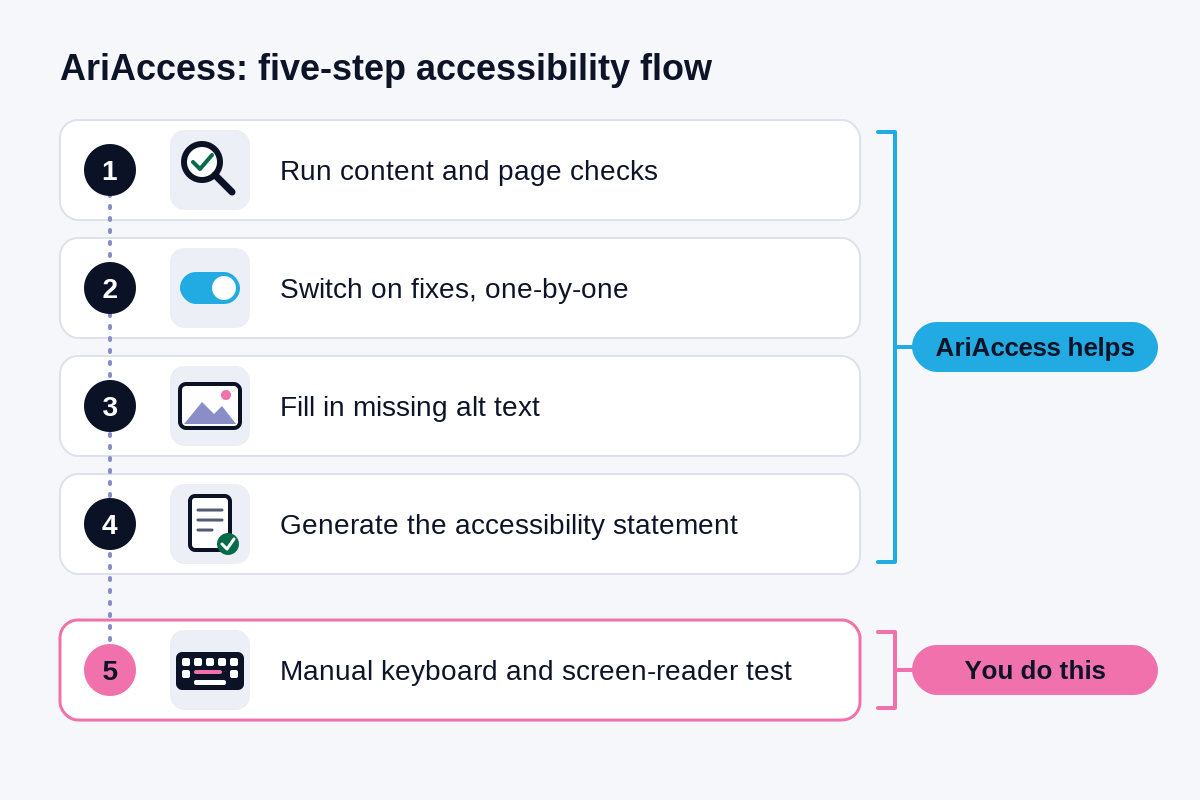
- Put the mouse away. Use Tab and Shift+Tab to move through the menu, any forms and, if you have one, the checkout.
- Watch the focus. At every step, you should be able to see where you are. If the focus disappears, note where it happens.
- Check you can get out. Open menus, pop-ups and the cookie banner with the keyboard, and make sure you can close them with the keyboard too.
- Zoom to 200%. Check that text is still readable and that nothing overlaps or gets cut off.
- Try a screen reader on one key page. Use the screen reader built into your computer or phone, or a free one. Listen to whether headings, links and buttons make sense when read aloud.
- Complete one form end to end. Make an error on purpose and check that the error message is announced and explains how to fix it.
Write down what you find and list it under Known problems in your statement until it is fixed.
How to install and what to do next
- In WordPress, go to Plugins, then Add New.
- Search for “AriAccess”.
- Click Install, then Activate.
- Open AriAccess, then Dashboard.
A sensible first hour looks like this:
- Choose your standard in Settings.
- Run “Check key pages”.
- Switch on fixes one at a time, testing with the keyboard after each one.
- Fill in missing alt text in the alt text manager.
- Generate the statement, then edit it so it describes your site honestly.
- Do the 10-minute manual test above.
AriAccess is free, and free features never move behind a paywall. You can find AriAccess on WordPress.org, ask questions in its support forum, and read more on the AriAccess product page.
Frequently asked questions
Does a private Norwegian business need an accessibility statement?
No. The requirement applies to the public sector, and public bodies create their statements through Digdir's uustatus.no. For private businesses a statement is voluntary, but Uutilsynet says it is positive for users when private businesses also report their accessibility status. AriAccess can generate a statement as a normal, editable page in Norwegian or English. This is general information, not legal advice.
Will AriAccess slow down my site or add to my cookie banner?
AriAccess sets no cookies, collects no visitor data and makes no external requests, so it gives you nothing to add to your cookie banner. The fonts and the axe-core testing engine are bundled with the plugin rather than loaded from other servers. Axe-core loads only for logged-in editors who run a page check, so ordinary visitors do not download it.
Can I use only the checker and hide the visitor panel?
Yes. Under the Display panel settings, untick 'Show the display panel button'. If you later want the panel back, tick the option again, or place the button exactly where you want it with the [ariaccess_button] shortcode.
Is the 'Norway, public sector' setting 47 or 48 criteria?
The AriAccess plugin page describes the public sector setting as 47 WCAG 2.1 criteria. Uutilsynet now lists 48. The extra criterion is 1.2.5, audio description for prerecorded video, which applies to video published from 1 February 2024. Treat Uutilsynet's own list of WCAG requirements as the authority.
Does AriAccess work with WCAG 2.2?
You can choose WCAG 2.2 AA as the standard, and the plugin will mark each issue as required or good practice against it. This helps you find problems, but it does not mean your site conforms to WCAG 2.2. The Norwegian rules are built on WCAG 2.0 for private businesses and WCAG 2.1 for public bodies.
Sources
- AriAccess – Accessibility Checker, Fixes & Display Panel (WordPress.org)
- AriAccess support forum (WordPress.org)
- Uutilsynet – WCAG-standarden
- Uutilsynet – EUs webdirektiv (WAD)
- Uutilsynet – Ofte stilte spørsmål om tilgjengelighetserklæringen
- uustatus.no (Digdir)
- WCAG 2.1 og 2.2 i Norge: 35 eller 48 krav (secondary source)
- W3C WAI – Evaluating Web Accessibility Overview
- W3C WAI – Selecting Web Accessibility Evaluation Tools