AriSEO is our free WordPress SEO plugin, and it is now listed on WordPress.org. This note covers what the AriSEO WordPress SEO plugin does, what it leaves out, what it adds to your pages and what it sends off your site. It also gives you a step-by-step way to try it without losing the settings in your current SEO plugin.
The AriSEO WordPress SEO plugin in short
AriSEO 0.1.1 was published on WordPress.org on 11 November 2026. It is free to download and use.
It is also brand new. It has very few active installs and no reviews yet, so check the WordPress.org page for the current figures. We would rather you know that up front than find out later.
We built it for small business site owners and WordPress freelancers who want one SEO plugin that covers the basics and stays light on public pages. If you are still comparing options, our guide on how WordPress SEO plugins compare sets out the trade-offs.
A paid version, AriSEO Pro, is coming soon and is not available yet. It is planned to add keyword tracking and multiple locations. Our promise is that free features never move behind a paywall, so nothing described below will become Pro-only later.
For context, we are AriHub, a small software company in Drøbak, Norway. We build focused WordPress plugins. We do not build websites or stores for clients.
What the free plugin does
Here is what the free version includes. We make no claims about rankings or speed. What happens in search results is up to the search engines.
While you write: titles, descriptions, previews and blocks
- Titles and descriptions with a live Google preview. You can see roughly how a page may look in results while you edit it. For practical advice, see our guide to writing titles and descriptions people click.
- Content analysis that runs in your browser while you write.
- Social previews. Open Graph and X cards control how a link looks when someone shares it.
- FAQ and table of contents blocks for the block editor.
Across the site: schema, sitemaps, breadcrumbs, redirects and audits
- Connected JSON-LD schema, including local business. “Connected” means the pieces, such as your organization, the website and the page, refer to each other instead of standing alone. Google states that it does not guarantee that features using structured data will appear in search results. To be eligible for rich results, structured data also has to follow Google’s general structured data guidelines and content policies. Our article on what schema markup can and can’t do goes into more detail.
- XML sitemaps that you can submit to search engines.
- Breadcrumbs. If you turn these on, check that the trail visitors see matches the breadcrumb markup on the page. Google’s breadcrumb documentation explains how the markup is structured.
- Redirects for moved or renamed pages.
- An optional 404 log that stores no IP addresses.
- A site audit and a bulk editor, so you can find gaps and fix them without opening every page.
Shops, languages and crawlers
- WooCommerce support.
- Multilingual sites with Polylang, WPML and AriLanguages. For the wider picture, read our guide to SEO for multilingual websites.
- AI crawler switches that add robots.txt rules for AI crawlers. Google-Extended, for example, is listed as a robots.txt user-agent token in Google’s list of common crawlers, and Google says those crawlers obey robots.txt when crawling automatically. Crawlers from other companies may not. Robots.txt is a request that well-behaved crawlers follow, not a lock.
| Feature | Where you find it | What to check after turning it on |
|---|---|---|
| Titles and descriptions | Post and page editor | The preview on your five most important pages |
| Social previews | Post and page editor | Share a test link and see which image and text appear |
| Schema (incl. local business) | AriSEO settings | Name, address and contact details match the site exactly |
| XML sitemaps | AriSEO settings | Open the sitemap URL and confirm it lists the pages you expect |
| Breadcrumbs | AriSEO settings | The visible trail matches the page’s place in your site |
| Redirects | AriSEO settings | Visit the old URL and confirm it lands on the new one |
| 404 log (optional) | AriSEO settings | Review it now and then, and add redirects where they make sense |
| AI crawler switches | AriSEO settings | Open yoursite/robots.txt and read the rules that were added |
What it adds to your site and what it sends
Most of AriSEO’s work happens in the admin and the editor. On public pages, it outputs the SEO data itself: meta tags, schema and sitemaps.
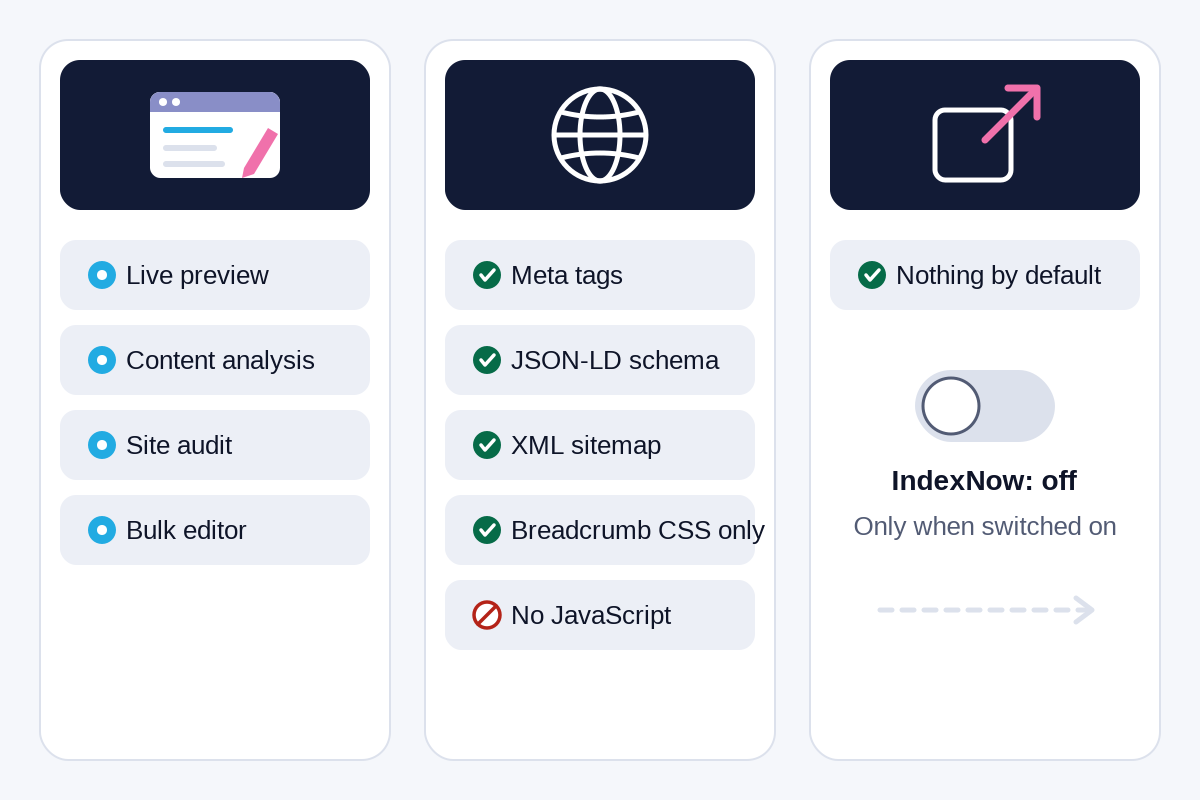
- Public pages: AriSEO adds no CSS or JavaScript, apart from a small piece of breadcrumb CSS.
- Data leaving your site: by default, AriSEO sends nothing anywhere. The only outbound feature is IndexNow, and it runs only if you switch it on.
- Visitor data: AriHub plugins do not send visitor data to AriHub.
- 404 log: optional, and it stores no IP addresses.
IndexNow is a protocol that lets a site notify search engines that a URL has been added, updated or deleted. Only the participating search engines receive these notices. If you turn it on, Bing says to use Bing Webmaster Tools to check that submitted URLs were received.
Switching from another SEO plugin without losing work
Two design choices make switching low-risk. Understand them before you start.
- Importing does not delete anything. AriSEO copies data from other SEO plugins and leaves the original data where it is. The WordPress.org page lists which plugins it can import from.
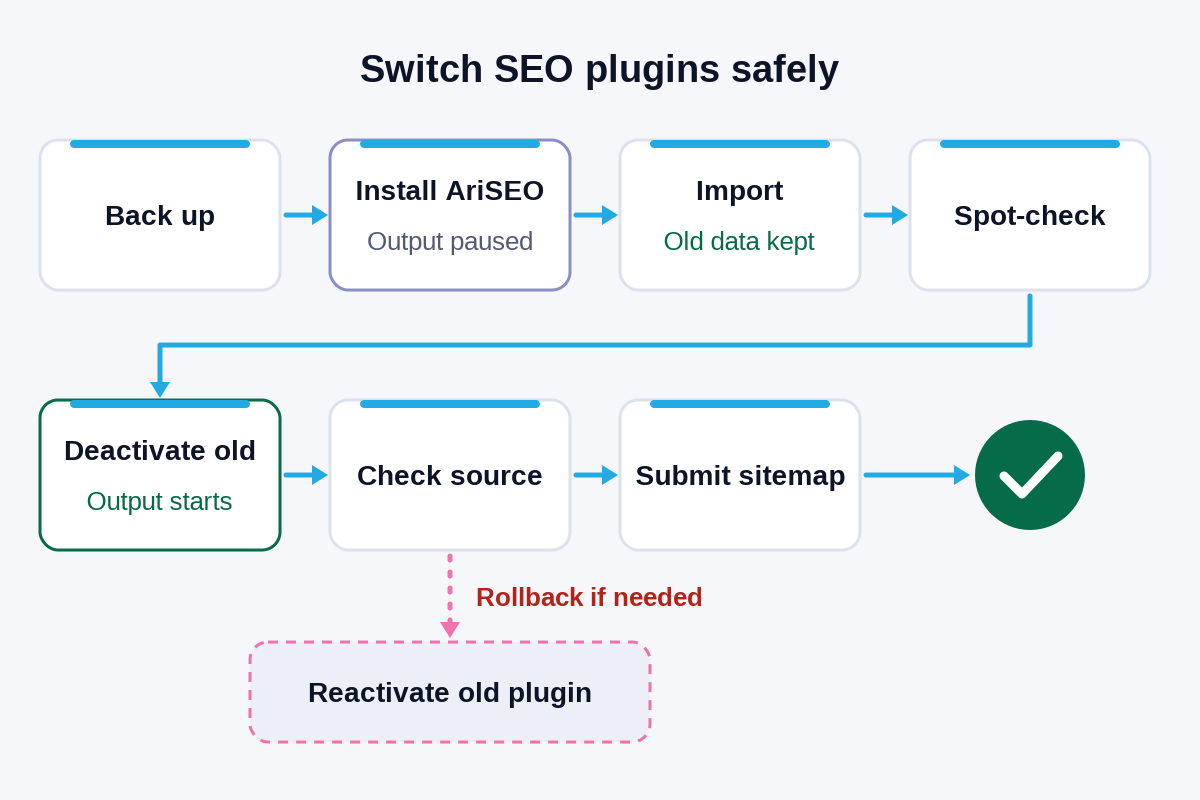
- AriSEO pauses its own output while another SEO plugin is active. You can install it, import and check results without ending up with duplicate titles, meta tags or schema on your pages.
Before you switch
- Make a full backup, or better, work on a staging copy of the site.
- List your most important pages: the homepage, main service or category pages and top landing pages.
- Note any redirects and custom schema in your current plugin, so you can confirm they came across.
For a broader checklist, see the checks we use when a site changes.
The switch, step by step
- Back up the site or use staging.
- Install and activate AriSEO. Your old plugin stays active, and AriSEO’s output stays paused.
- Run the import from your current SEO plugin.
- Spot-check five to ten important pages in the live Google preview. Make sure titles and descriptions came across as expected.
- Deactivate the old plugin. AriSEO’s output starts now.
- View the page source on a few URLs. Confirm there is one
<title>, one meta description and one schema block. - Open the new sitemap URL, then submit your sitemap in Google Search Console.
- Keep the old plugin installed but inactive until you are satisfied.
How to roll back
Deactivate AriSEO and reactivate your old plugin. Its data is still there, because the import never deleted it.
One caveat: changes you make in AriSEO after the switch will not carry back to the old plugin. If you edit important titles during the trial, write them down.
How to install AriSEO
You install AriSEO like any other plugin from the directory, as described in WordPress’s Manage Plugins documentation:
- In WordPress admin, go to Plugins, then Add New. The exact label can vary between WordPress versions.
- Search for “AriSEO”.
- Click Install Now, then Activate.
You can also download the zip from the AriSEO page on WordPress.org and upload it from the same Add New screen.
Your first ten minutes:
- Set the site name and your organization or local business details.
- Check the homepage title and description.
- Open the sitemap URL and look through it.
- Decide whether you want breadcrumbs, and where they appear.
- Choose your AI crawler settings, then read the resulting robots.txt.
- Leave IndexNow off unless you have a reason to use it.
If you look after a client’s site, test on staging first. Move to the live site once you have checked the output.
What AriSEO does not do (yet)
- No keyword or rank tracking and no multiple locations in the free version. These are planned for AriSEO Pro, which is coming soon and not available.
- No promises about rankings, rich results or indexing. Search engines make those decisions.
- IndexNow does not replace sitemaps or Google Search Console. Check the current list of participating search engines on indexnow.org, and do not assume a particular engine is on it.
- No link building or content writing. AriSEO helps you describe and structure your content. You still have to write it.
- No access control for AI crawlers. The robots.txt rules are requests, and crawlers that ignore robots.txt will not be stopped by them.
- No track record yet. It is new, with no install history or reviews. If something breaks, please tell us in the support forum.
A simple rule of thumb: if a feature is not on the WordPress.org page, assume AriSEO does not have it. A plugin is also only one part of the job. For the rest, see our guide to a full website SEO audit.
Next steps and where to get help
In short:
- AriSEO is free.
- It is new.
- It is easy to try and easy to roll back.
Download it from WordPress.org. Bug reports and feature requests are welcome in the AriSEO support forum. At this early stage, every report helps.
You can read more on the AriSEO product page.
Frequently asked questions
If I try AriSEO and don't like it, will I lose my old SEO settings?
No. AriSEO imports from other SEO plugins without deleting their data, so you can deactivate AriSEO and reactivate your old plugin. Its settings will still be there. Changes you make in AriSEO after switching will not carry back to the old plugin, so write down any important titles or descriptions you edit during your trial.
Does blocking AI crawlers affect my Google rankings?
Google-Extended is a separate robots.txt token from Googlebot, and Google describes what it controls in its list of common crawlers. Read that description before you decide. Other AI crawlers are run by other companies, each with its own rules. Remember that robots.txt is a request that well-behaved crawlers follow, not a hard block.
Does turning on IndexNow tell Google about my new pages?
Don't assume so. IndexNow only notifies participating search engines, and the current list is published on indexnow.org. For Google, rely on your XML sitemap and Google Search Console. In AriSEO, IndexNow is off by default and sends nothing until you switch it on. If you use it, Bing Webmaster Tools can show whether your URLs were received.
Is a brand-new plugin with few installs safe to use on a client site?
AriSEO is new and has no track record yet, so be cautious. Test it on a staging copy first, read the changelog and support forum, and keep the old SEO plugin installed but inactive so you can roll back. After switching, check the page source on a few URLs to confirm there is one title, one description and one schema block.
Will free features become paid when AriSEO Pro launches?
No. Our promise is that free features never move behind a paywall. AriSEO Pro is planned to add keyword tracking and multiple locations on top of the free plugin. It is coming soon and is not available yet, and we have no price or release date to announce.
Sources
- AriSEO on WordPress.org
- AriSEO support forum (WordPress.org)
- Manage Plugins (WordPress.org documentation)
- Breadcrumb (BreadcrumbList) structured data (Google Search Central)
- General structured data guidelines (Google)
- List of Google’s common crawlers (Google)
- IndexNow documentation
- IndexNow: participating search engines
- How to add IndexNow to your website (Bing)