
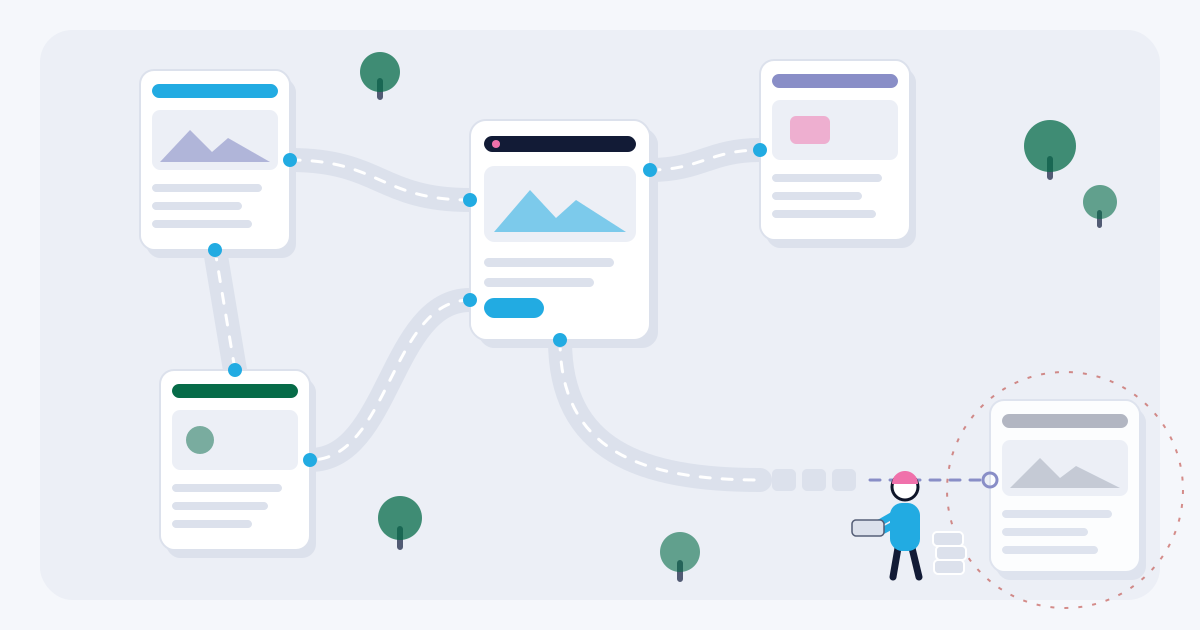
Internal linking is one of the few SEO tasks that is fully in your hands: you decide which pages link to which, and with what words. This guide covers what Google documents about internal links, which popular rules you can drop, and how to write link text that works for search engines and screen reader users. It ends with a 30-minute audit you can run on a WordPress site this week.
What internal links do, and what they don’t
An internal link is a link from one page on your domain to another page on the same domain. For example, a plumber’s blog post about frozen pipes might link to the plumber’s own emergency call-out page. That is an internal link. A link to a weather service would be an external one.
According to Google’s link best practices, links do three jobs:
- Discovery: Google follows links to find pages it hasn’t crawled yet.
- Understanding: links and their anchor text help Google and people see how your pages relate and what each one is about.
- Navigation: links move visitors to the next useful page on your site.
Google’s guidance is direct: every page you care about should have a link from at least one other page on your site. A page with no internal links pointing to it is called an orphan page. Visitors can’t click their way to it.
An XML sitemap helps, but it doesn’t replace links. Google says that if your pages are properly linked, it can usually discover most of your site, and that a sitemap can improve crawling of larger or more complex sites. A sitemap lists URLs. It doesn’t tell anyone why a page matters or how it fits with the rest of the site.
Be realistic about results. Google doesn’t publish a formula for how much internal links count for rankings. Good internal linking makes your site easier to crawl and use, but nobody can honestly promise a specific ranking gain from it.
Old internal linking rules you can drop
A lot of internal linking advice is repeated from blog to blog without a source. Here is how some common claims compare with what primary sources say.
| Common claim | What the primary source says | What to do instead |
|---|---|---|
| Add nofollow to internal links to “sculpt” PageRank toward important pages. | Google describes nofollow as a way to qualify outbound links you’d rather it not associate with your site or crawl from it. For links within your own site, Google says to use the robots.txt disallow rule instead. | Leave internal links followed. If a section shouldn’t be crawled, handle it in robots.txt. If a page doesn’t deserve links, ask whether it should exist. |
| Never have more than 100 links on a page. Every page must be within 3 clicks of the homepage. | We found no current Google documentation that sets either limit. | Treat them as rules of thumb at most. Check that important pages are easy to reach from relevant pages and from your navigation. |
| Use exact-match keyword anchors on every internal link. | Google says if it feels like you’re forcing keywords into the anchor text, it’s probably too much. | Write anchors that describe the target page in natural language. |
| Internal links boost “engagement signals” or cut bounce rate, which improves rankings. | We found no Google documentation that supports this. | Add links because they help readers. Don’t rely on unsourced ranking theories. |
How to write anchor text for Google and for people
Anchor text is the clickable text of a link. Google’s test is simple: good anchor text is descriptive, reasonably concise, and relevant to both the page it’s on and the page it links to. A quick check: read only the anchor. If you can’t tell what the target page is about, rewrite it.
Good and weak anchors side by side
The examples below are made up for illustration. They use a plumbing company and an accounting firm, two typical small Norwegian business sites.
| Weak anchor | Better anchor | Why |
|---|---|---|
| To book a service, click here. | You can book a water heater replacement online. | The anchor says what the target page offers. |
| Read more | How to prepare your annual accounts as a sole proprietor | It makes sense out of context and is unique on the page. |
| cheap plumber Oslo best plumber Oslo | our plumbers in Oslo | No forced keywords, and it reads naturally. |
| We wrote about this in this article. | See our guide to choosing an accounting firm. | Readers and Google both learn the topic of the target. |
Vary your wording naturally when several pages link to the same target. “Our bookkeeping service” and “bookkeeping for small businesses” can both point to the same page. Avoid the opposite problem: don’t use the same anchor for two different pages, because readers can’t tell which link goes where.
Also avoid placing links right next to each other. Google notes that readers can’t tell adjacent links apart, and each link loses its surrounding text. Give each link its own sentence or list item.
Anchor text is an accessibility issue too. WCAG 2.2 Success Criterion 2.4.4 Link Purpose (In Context) is at Level A. It requires that the purpose of each link can be determined from the link text alone, or from the link text together with its programmatically determined context.
Screen readers can list all the links on a page, and ten links that all say “Read more” tell the user nothing in that list. Descriptive anchors meet the needs of both Google and screen reader users.
In Norway, the regulation on universal design of ICT solutions refers to WCAG success criteria, and Uutilsynet supervises it. This article is general information, not legal advice. For practical tooling, see our post on checking link text and other accessibility issues in WordPress.
Links in images and buttons
When an image is a link, Google uses the image’s alt text as the anchor text. A linked logo or banner with empty alt text gives the link no description. Write alt text that describes where the link goes, such as “Book a water heater replacement”.
Buttons need a technical check. Google says it can generally only crawl a link if it is an HTML <a> element with an href attribute. A “button” that only navigates through a JavaScript click handler may not count as a link to Google.
Inspect the button in your browser: you want to see <a href="...">. And “Learn more” on a button has the same problem as “Read more” in text, so give it a descriptive label.
Where internal links live on a WordPress site
WordPress and your theme create many internal links without you typing them. It helps to know what each type is good for.
| Link location | Good for | Typical weakness | What to check |
|---|---|---|---|
| Navigation menus | Reaching your most important pages from anywhere | Too many items. Little context. | Are your key services or categories in the menu? |
| Footer | Contact, legal and secondary pages | Long link blocks repeated on every page | Keep it short and useful. |
| Breadcrumbs | Showing where a page sits in the hierarchy | Missing, or not matching your real structure | Do they reflect your categories? |
| Category and tag archives | Grouping posts by topic | Thin or near-empty tag pages | How many tags have only one or two posts? |
| Related-posts blocks | Suggesting the next read | Loosely related or random suggestions | Are the suggestions really on the same topic? |
| Links in the text | Context and relevance | Forgotten, vague or broken | Anchor text, broken targets, orphan pages |
Menus, footers and breadcrumbs
Template links such as menus and footers repeat on every page. They make key pages reachable, but they carry little context. Keep menus focused on the pages a visitor most likely needs.
Breadcrumbs show a page’s place in the site, for example Home › Services › Bookkeeping. If you add breadcrumb structured data, Google requires a BreadcrumbList that contains at least two ListItems. Our guide to adding schema markup covers this in more detail.
Archives and related posts
Tags are easy to create and easy to overuse. A site with hundreds of tags that each hold one post produces many thin archive pages and many weak links to them. Merge overlapping tags, remove ones that hold a single post, and keep tags that group real topics.
Related-posts blocks are useful when the matches are good. Check a few posts and ask whether you would choose those suggestions yourself.
In WooCommerce, link category pages to their key products and any buying guides. Link each product page back to its category. Our article on SEO for product pages goes further.
Links in the text
Links inside the body of a post carry the most context, because the sentence around the link explains why it’s there. This is where most of your deliberate internal linking happens, and where the next section helps.
How to add internal links in WordPress, fast
The block editor lets you link to your own content without copying URLs. The WordPress.org Link control documentation describes the basics:
- Select the text you want as the anchor.
- Press
Ctrl+K(Windows) or⌘+K(Mac). - Type part of the title of a post or page on your site.
- Pick it from the search results.
The routine after you publish
The editor makes it easy to link out from a new post. Nothing reminds you to link to it from older posts, which is how new pages end up as orphans. After publishing:
- Search your site for two or three older posts on the same topic.
- Add a link from each to the new post, in a sentence where it helps the reader.
- Check that the new post links to the relevant hub or service page.
If you change a post’s slug, set up a redirect from the old URL, and also update your internal links to the new URL. That way visitors and crawlers don’t pass through a redirect on every click. Read more about changing slugs and setting up redirects in WordPress, and use a checklist for optimizing new and old blog posts when you update older content.
Automatic internal linking plugins can save time by suggesting links. Treat their output as suggestions: a person should review every link for relevance and anchor text. We’re building AriLinks (coming soon), which will add automatic internal links and find orphan pages. It isn’t available yet.
A 30-minute internal link audit
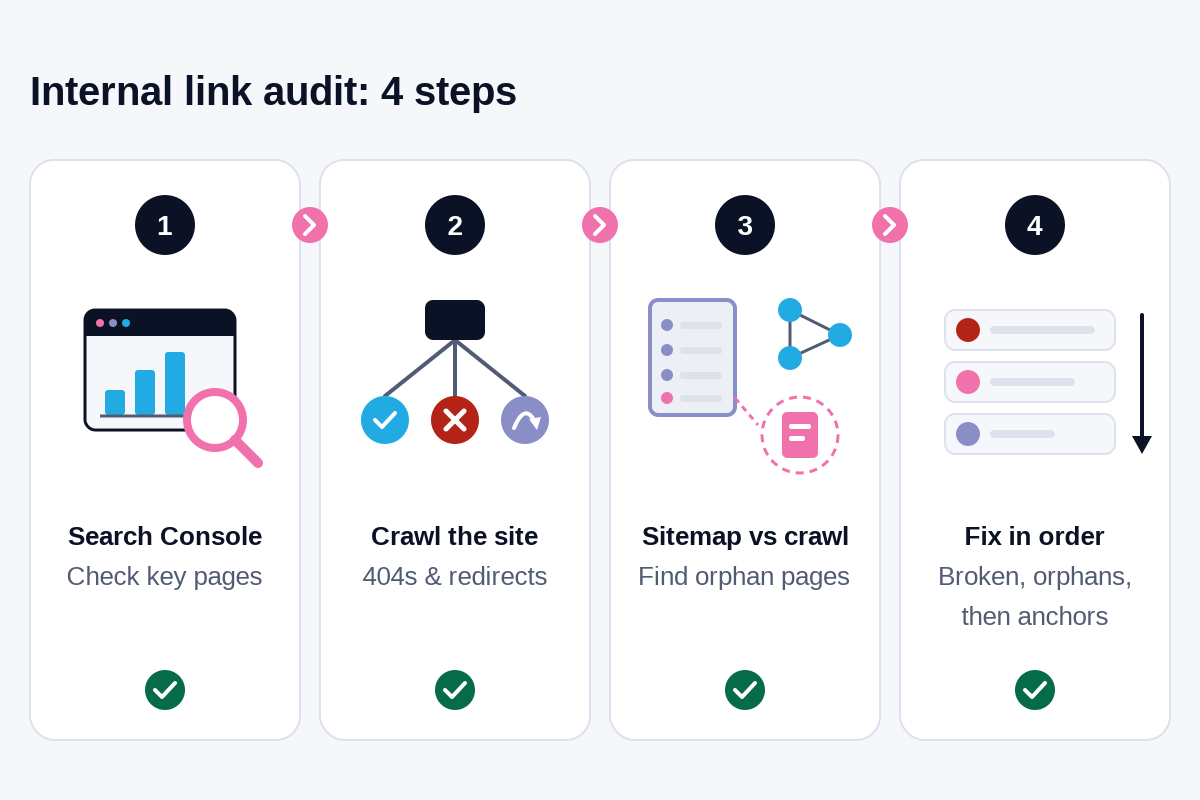
This audit won’t find everything, but it finds the problems that matter most. If you’re new to the tool, start with our guide to getting started with Google Search Console.
What Search Console shows, and what it doesn’t
Step 1 (about 5 minutes): In Search Console, open Links, then Top linked pages under Internal links. Are your key service, product or pillar pages near the top? Then scroll to the bottom: important pages with very few internal links are often the most useful finding.
Know the limits of this report. According to Google’s Links report help page, the data is based on a sample of links, and the “Top linking text” card covers external links only. You can’t check your internal anchor text there.
Step 2 (about 10 minutes): Run a crawler on your site. A desktop crawler or the site audit in your SEO plugin can work. Whichever you use, check that it reports:
- internal links to pages that return 404
- internal links that pass through redirects or redirect chains
- internal links to noindexed URLs
If you want an option inside WordPress, AriSEO, our free SEO plugin, includes a site audit, redirects and breadcrumbs. Any reliable crawler will do the job.
Finding orphan pages
Step 3 (about 10 minutes): Export the URLs in your XML sitemap and the URLs your crawler found by following links from the homepage. Make sure the crawler isn’t also reading your sitemap, or orphans will look linked. Put both lists in a spreadsheet and compare them: URLs that appear in the sitemap but were never reached through links are your orphans.
For each orphan, decide: link to it from related pages, merge it into a stronger page, or remove it.
Fixing in the right order
Step 4 (the remaining time, then ongoing): Fix problems in this order:
- Broken links. They send visitors to dead ends.
- Orphans you care about. Add links from two or three relevant pages.
- Vague anchors. Replace “click here” and “read more” on your most important pages first.
Checklist to copy:
- My 5–10 most important pages are listed.
- Each of them appears with a reasonable number of links in Search Console’s internal links list.
- No internal links point to 404 pages.
- Internal links point to final URLs, not redirects.
- No internal links point to noindexed pages unless there’s a reason.
- Every sitemap URL is reachable through at least one internal link.
- Key pages have descriptive anchors, with no repeated “read more”.
- Linked images have alt text that describes the target.
A simple link structure for small sites
Most small sites don’t need a complex architecture. A hub-and-spoke model works well. Create one overview page (the hub) per core topic or service. Supporting posts link up to the hub, and to each other where it’s relevant.
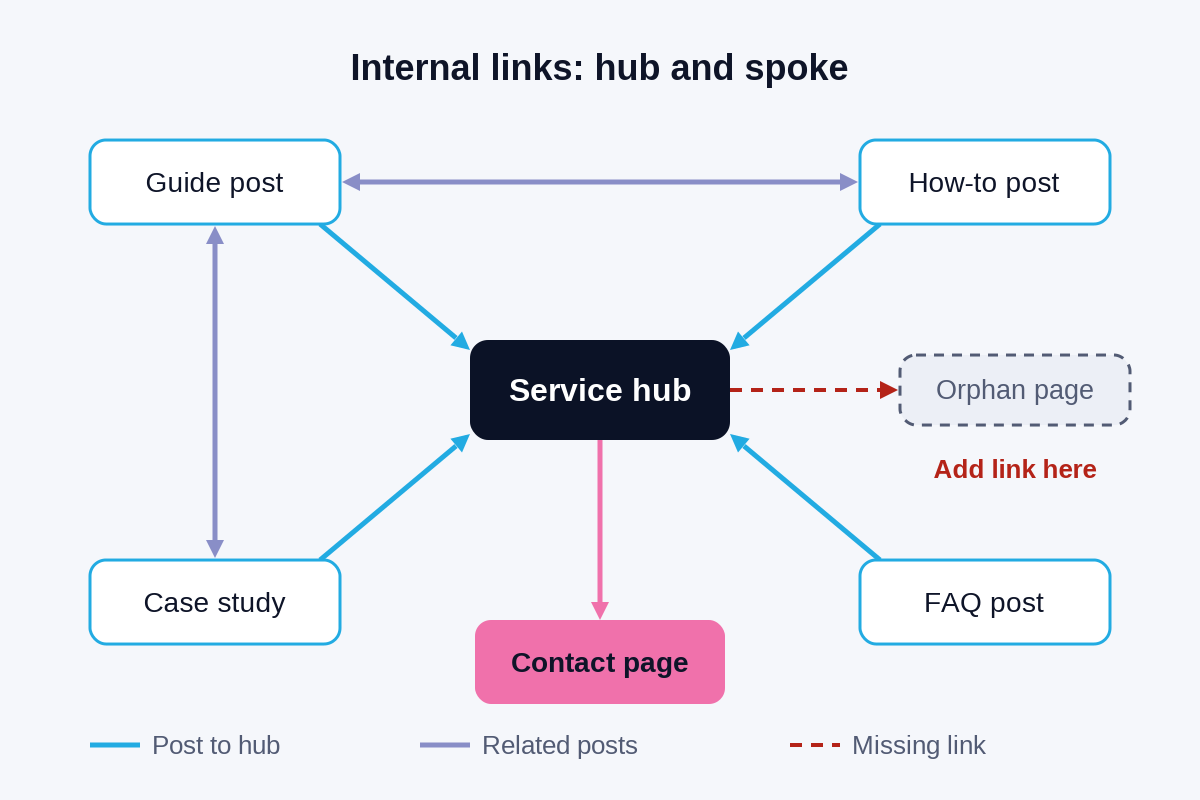
Here is a made-up example for a small accounting firm with three services:
- Bookkeeping hub: supporting posts on organizing receipts, choosing accounting software, monthly routines and common bookkeeping mistakes.
- Annual accounts hub: supporting posts on deadlines, what documents to collect, and the difference between a sole proprietorship and a limited company.
- Payroll hub: supporting posts on hiring your first employee, holiday pay and payroll reporting.
Each supporting post links to its hub. Where topics overlap, posts link sideways: a post on hiring your first employee might link to the post on monthly bookkeeping routines. Each hub links to the contact or booking page.
Link from informational posts to a service or product page only where it helps the reader. One relevant link near the point where a reader might need help works better than a sales link in every paragraph.
Sometimes the answer is to merge rather than link. If two thin posts answer the same question, combine them into one stronger page and redirect the old URL. See our guide on how to plan content clusters for a fuller method.
Next steps
Start with these five actions:
- List your 5–10 most important pages.
- Check how they appear in the Search Console Links report.
- Add links to them from relevant older posts.
- Rewrite vague anchors on your key pages.
- Fix broken internal links and connect or remove orphan pages.
Then make internal linking part of your routine: add links every time you publish or update a post, not once a year. For the bigger picture, use the content clusters guide above to plan your structure, then run a full website SEO audit.
Frequently asked questions
How many internal links should a blog post have?
Google gives no number. Add a link wherever a reader would naturally want to go to another page next, make sure every important page receives links from related content, and avoid long blocks of links. Ratios you may see online, such as one link per 200 words, have no primary source behind them. Use them as rough rules of thumb at most.
Is it bad to use the same anchor text for several internal links?
Repeating a descriptive anchor that points to the same page is normal. The real problems are forced keywords, which Google says are probably too much, and using one anchor for two different pages, which leaves readers unable to tell the links apart. Vary your wording naturally, and make sure each anchor clearly describes the page it points to.
Should internal links open in a new tab?
This is our editorial view, not a Google rule. Internal links should normally open in the same tab, so the browser's Back button works the way visitors expect. The WordPress block editor lets you choose a new tab for each link. If you do use it, tell the reader in the link text, so the new tab doesn't come as a surprise.
Do automatic internal linking plugins hurt SEO?
Tools that suggest internal links can save time. Plugins that insert links automatically without review risk irrelevant matches, awkward anchor text and too many links on a page. Treat every suggestion as a draft. Review each link, keep anchors descriptive, and check the plugin's output again after you change a slug or restructure a section of your site.
Does a sitemap fix orphan pages?
A sitemap helps Google find URLs, but it gives a page no context and doesn't help visitors reach it. Google says that if your pages are properly linked, it can usually discover most of your site. Fix an orphan page by adding relevant links from related pages. If the page isn't worth linking to, merge it into a stronger page or remove it.
Sources
- Link best practices for Google (Google Search Central)
- Learn about sitemaps (Google Search Central)
- Qualify your outbound links to Google (Google Search Central)
- Breadcrumb (BreadcrumbList) structured data (Google Search Central)
- Links report (Search Console Help)
- Link control (WordPress.org documentation)
- Web Content Accessibility Guidelines (WCAG) 2.2 (W3C)
- Forskrift om universell utforming av informasjons- og kommunikasjonsteknologiske (IKT)-løsninger (Lovdata)
- Uutilsynet (Authority for Universal Design of ICT)

Leave a Reply
You must be logged in to post a comment.